Draw or upload your signature
Write an electronic signature directly or use an existing signature image, then move and resize it to fit.
 Sign PDF
Blog
Add to Chrome
Sign PDF
Blog
Add to Chrome
Private PDF signing in Chrome
Draw or upload your electronic signature, add the details a document needs, and download the finished PDF. Your file stays on your computer.
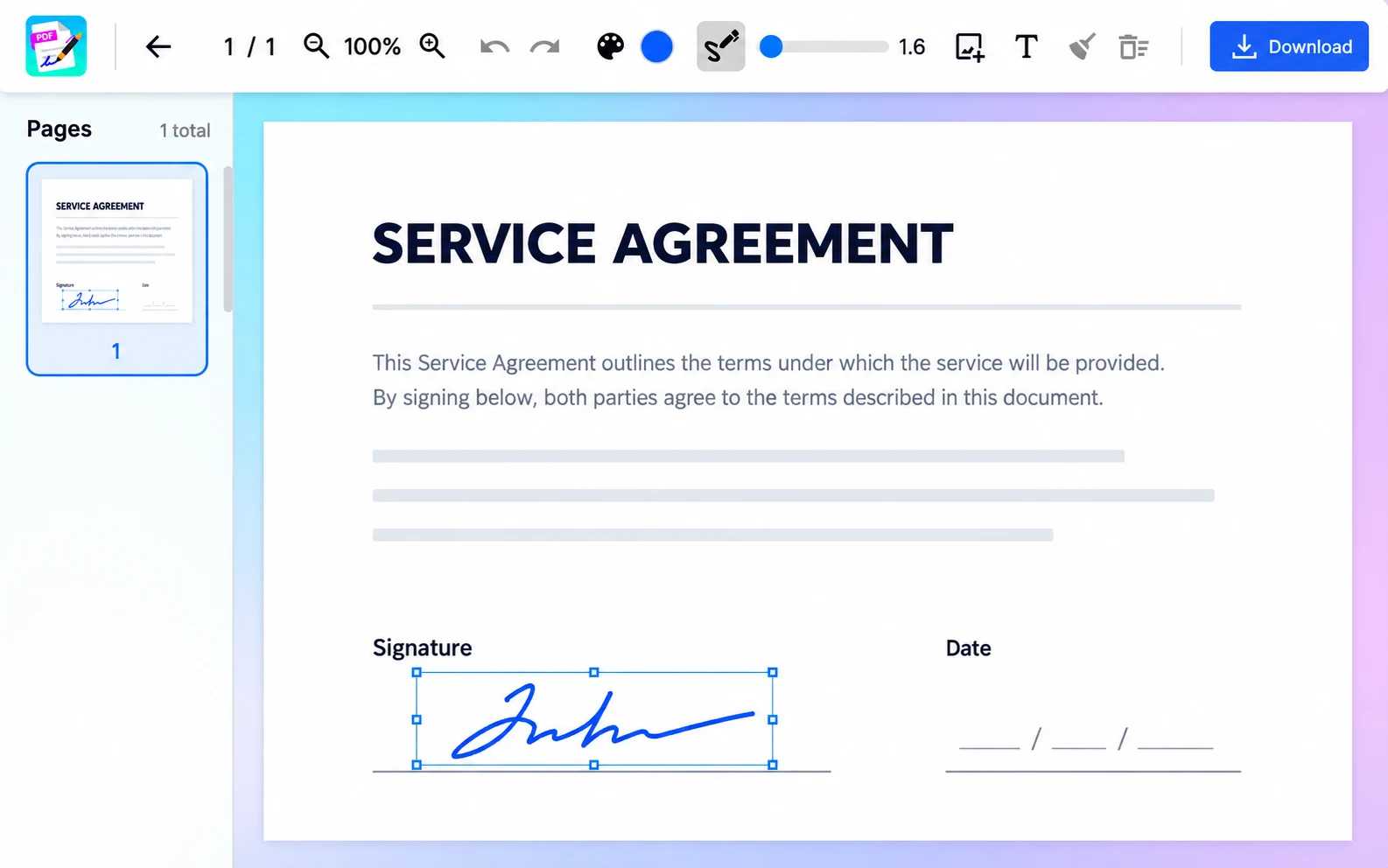
Everything in one toolbar
Use a focused set of tools to place an electronic signature, complete important fields, review every page, and save the result.
Write an electronic signature directly or use an existing signature image, then move and resize it to fit.
Complete a name, date, note, or another detail and place it exactly where the PDF needs it.
Choose a pen color and stroke width before you draw your signature.
Move through a multi-page PDF, zoom in, undo a recent change, and check the file before saving.
When the document looks right, save the edited file back to your computer as a PDF.
A short path from open to done
No registration flow to get through and no document upload to wait for.
Drop a PDF into the extension or choose it from your computer. You can also open a PDF link from Chrome’s context menu.
Draw or upload a signature, position it, adjust the ink, and add any text the document needs.
Check the pages, undo anything that is out of place, then save the signed PDF to your computer.
Local by design
Many online tools require an upload. Sign PDF works differently: the extension processes your document locally on your computer.
Made for everyday documents
Quick answers
Yes. Once the extension is installed, Sign PDF works offline.
No. Each PDF is processed locally on your computer rather than uploaded to an external server.
No. There is no account or registration step.
Yes. Upload an image of your signature, resize it, and place it on the PDF. You can also draw a signature.
Yes. Move between pages, zoom for a closer view, and review the whole document before downloading.
Your next PDF can stay local
Works offline after installation · No account required